
MS Word Questions Answers (Part-I)

MS Word Questions Answers (Part-I)
1. What Is MS Word?
Answer: Microsoft Word is a word-processing application developed by Microsoft. It is used to create, edit, format, save and print different types of documents.
MS Word helps users prepare professional documents easily. We can create:
- Biodata and Resumes.
- Business Letters and Applications.
- Reports and Project Files.
- Tables and Charts.
- Invitation Cards and Notices.
- Certificates and Office Documents.
It also provides tools for inserting pictures, shapes, tables, page numbers and other elements into a document.
2. How Many Main Menus or Tabs Are Available in MS Word, and What Are Their Names?
Answer: The number of tabs depends on the version of Microsoft Word. The eight commonly taught tabs in the interface covered by this question set are:
- Home
- Insert
- Design
- Page Layout
- References
- Mailings
- Review
- View
Each tab contains different commands and tools.
- Home: Used for text formatting, paragraph settings and clipboard operations.
- Insert: Used to add tables, pictures, shapes, charts and other objects.
- Design: Used to apply themes, colours and document formatting.
- Page Layout: Used to manage margins, orientation, paper size and page settings.
- References: Used for Table of Contents, citations, footnotes and references.
- Mailings: Used for Mail Merge, envelopes and labels.
- Review: Used for spelling checks, comments and Track Changes.
- View: Used to change document views and display settings.
Note: In newer Word versions, Page Layout is generally named Layout. The available tabs can also vary by version and enabled features.
3. How Many Groups Are Available in the Home Tab, and What Are Their Names?
Answer: In the commonly used desktop Ribbon layout, the Home tab contains five main groups.
Their names are:
- Clipboard: Used for Cut, Copy, Paste and Format Painter operations.
- Font: Used to change font style, size, colour and text effects.
- Paragraph: Used to manage alignment, indentation, bullets and line spacing.
- Styles: Used to apply predefined formatting styles to headings and paragraphs.
- Editing: Used for Find, Replace and Select commands.
These groups help users edit and format document content quickly.
4. How Many Tools Are Available in the Clipboard Group, and What Are Their Names?
Answer: The Clipboard group contains four commonly taught tools.
Their names and functions are explained below.
(i) Paste: Paste inserts previously cut or copied content at the selected location. The content may include text, pictures, tables or other supported objects.
(ii) Cut: Cut removes the selected text, paragraph, picture or object from its current location and temporarily stores it on the Clipboard. You can paste it at another location.
(iii) Copy: Copy creates a duplicate of the selected text, paragraph, picture or object without removing the original content. The copied content can be pasted elsewhere.
(iv) Format Painter: Format Painter copies formatting from one piece of text or object and applies it to another. It can copy font style, size, colour and other formatting properties.
Example: Select a heading with blue colour and bold formatting. Click Format Painter and select another heading to apply similar formatting.
5. How Many Tools Are Available in the Font Group, and What Are Their Names?
Answer: The commonly taught Font group contains 14 important tools. These tools are used to change the appearance and formatting of selected text.
Their names and functions are explained below.
(i) Font: Changes the writing style or typeface of selected text. For example, you can change Arial to Times New Roman.
(ii) Font Size: Changes the size of selected text. You can select a predefined size or enter a supported point size manually.
(iii) Grow Font: Increases the font size of selected text by a predefined step.
(iv) Shrink Font: Decreases the font size of selected text by a predefined step.
(v) Clear All Formatting: Removes applied text formatting, such as font styles, colours, bold, italic and other direct formatting. It returns the selected text to its default formatting.
(vi) Bold: Makes selected text thicker and darker. It is commonly used for headings and important words.
(vii) Italic: Makes selected text appear slanted. It is often used for emphasis, titles and special terms.
(viii) Underline: Adds a line below selected text. It helps highlight important words or headings.
(ix) Strikethrough: Draws a horizontal line through selected text. It is commonly used to indicate deleted or outdated information.
(x) Subscript: Places selected characters slightly below the normal text baseline. For example, H₂O is a chemical formula in which 2 appears as a subscript.
(xi) Superscript: Places selected characters slightly above the normal text baseline. For example, X² shows 2 as a superscript.
(xii) Change Case: Changes the capitalization of selected text. Common options include Sentence case, lowercase, UPPERCASE, Capitalize Each Word and tOGGLE cASE.
(xiii) Text Highlight Color: Applies a coloured background highlight behind selected text, similar to using a highlighter pen.
(xiv) Font Color: Changes the colour of the selected characters. For example, you can change black text to blue, red or green.
Practical Tip: Do not confuse Text Highlight Color with Font Color. Font Color changes the colour of letters, whereas Text Highlight Color changes the background directly behind the selected text.
6. Which Formatting Is Not Normally Removed by the Clear All Formatting Tool?
- Answer: Page-level formatting, such as Page Color, page margins and page layout settings, is not removed by the Clear All Formatting command.
- Clear All Formatting mainly removes direct formatting applied to selected text, such as font size, font colour, bold, italic and other text effects.
- To remove the page background colour, use the Page Color option under the Design tab instead.
7. Which Tool Is Used to Copy Multiple Items Separately in MS Word?
Answer: The Office Clipboard tool is used to collect multiple copied or cut items separately. It allows users to store and paste different pieces of text, paragraphs and graphics without losing the previously collected items.
Shortcut Key: Alt + H, F, O
Follow these steps:
- Open the Home tab.
- Press Alt, H, F, O sequentially.
- The Clipboard task pane opens on the left side of the Word window.
- Select the required text or paragraph.
- Press Ctrl + C to copy it.
- Repeat the process to collect additional items.
- Select the required Clipboard entry to paste an individual item.
- Use Paste All to insert all collected items.
The Office Clipboard can store up to 24 items. When another item is added after reaching this limit, the oldest item is removed.
8. What Is the Use of Paste Special in MS Word?
Answer: Paste Special is used to paste copied content in a specific format. It gives users more control over how text, pictures, tables and other objects appear in a document.
For example, when copying text from a website, you can choose Unformatted Text or Keep Text Only to remove the original formatting and apply the formatting of your Word document.
Some common Paste Special options include:
- Formatted Text: Retains the original text formatting.
- Unformatted Text: Pastes plain text without the original formatting.
- Picture: Pastes the copied content as an image.
- Paste Link: Creates a link to the original supported content.
The available options depend on the copied content and Word version.
9. Which Option Is Used to Reduce the Spacing Between Characters in a Word?
Answer: The Condensed option is used to reduce the spacing between selected characters. It makes the letters appear closer to each other.
Follow these steps:
- Select the required text.
- Open the Home tab.
- Click the small Font Dialog Box Launcher.
- Open the Advanced tab.
- Find the Spacing option.
- Select Condensed.
- Enter the required value in the By box.
- Click OK.
Example: If you want to make a heading more compact, you can apply Condensed character spacing.
10. Which Option Is Used to Increase the Spacing Between Characters in a Word?
Answer: The Expanded option is used to increase the spacing between selected characters. It makes the letters appear farther apart from each other.
Follow these steps:
- Select the required text.
- Open the Home tab.
- Click the Font Dialog Box Launcher.
- Select the Advanced tab.
- Find the Spacing option.
- Select Expanded.
- Enter the required value in the By box.
- Click OK.
Example: Expanded spacing can be used to give a heading a wider appearance.
11. What Is the Use of Styles in MS Word?
Styles are ready-made formatting settings used to make text look neat and professional. A style can apply a particular font, size, colour and formatting to text in just one click.Styles are mainly used for headings, titles and paragraphs. They help maintain the same formatting throughout a document.
Example: Suppose you are preparing a school project. You can apply the Heading 1 style to main headings and the Heading 2 style to smaller headings. All headings with the same style will have a consistent appearance.
In simple words: Styles help you format text quickly and keep the document organised.
12. What Is the Difference Between Save and Save As?
Save and Save As are used to store a document, but they work in different ways.
- Save: Save updates the changes in the existing document. It is useful when you want to keep working on the same file.
- Save As: Save As creates a new copy of the document with a different name, location or file format. It helps you keep the original document unchanged.
Example: Suppose you have a file named Computer Notes.docx. After making some changes, you click Save to update the same file. But when you use Save As and give it the name Computer Notes Updated.docx, Word creates a separate file.
In simple words: Save updates the current file, while Save As lets you save another copy of the file.
13. What Is the Default File Extension of MS Word?
- The default file extension of a modern MS Word document is .docx.
- A file extension is the group of letters written after the dot (.) at the end of a file name. It tells the computer which type of file it is.
- Older versions of MS Word commonly used the .doc extension. Modern versions generally use .docx when saving a Word document.
Example:
My Document.docx– A modern Word document.My Document.doc– An older Word document format.
In simple words: The default file extension of a modern MS Word document is .docx.
14. What Is the Use of Navigation Pane in MS Word?
The Navigation Pane helps users find and move to specific information in a document. It is especially useful when working with long documents.
It mainly provides three useful ways to navigate:
- Search: Find a particular word or phrase in the document.
- Headings: View the document headings and move directly to a selected heading.
- Pages: View page thumbnails and jump to a particular page.
Example: Suppose you have a 100-page computer book and want to find the word “Excel”. You can open the Navigation Pane, type “Excel” in the search box and find its locations in the document.
In simple words: The Navigation Pane helps you search text and quickly move between headings and pages.
15. What Is the Use of Table of Contents in MS Word?
A Table of Contents (TOC) is a list of the main headings and subheadings of a document. It usually displays their page numbers so that readers can find topics easily.MS Word can create a Table of Contents automatically by using built-in Heading Styles, such as Heading 1 and Heading 2.
Example: Suppose you are preparing a computer course book. Its Table of Contents may look like this:
- Introduction – Page 1
- MS Word – Page 5
- MS Excel – Page 20
- MS PowerPoint – Page 35
When you add or remove content, you can update the Table of Contents to show the latest headings and page numbers.
In simple words: A Table of Contents works like an index at the beginning of a book and helps readers find topics quickly.
16. What Is Track Changes in MS Word?
Track Changes is a review feature in MS Word that records the changes made to a document. It helps users see what has been added, deleted or modified during editing.When Track Changes is turned on, Word marks editing changes so that reviewers can check them.
Users can:
- Review the changes made by different people.
- Accept a change to keep it in the document.
- Reject a change to remove that edit.
- Check the document before finalising it.
Example: Suppose a teacher checks a student’s assignment. The teacher adds a sentence and deletes an incorrect word. With Track Changes turned on, the student can see these changes and decide whether to accept or reject them.
In simple words: Track Changes helps users check, manage and approve edits made to a document.
17. What Is the Use of Comments in MS Word?
Comments are used to add notes, suggestions, questions or feedback to a document without directly changing its original text. A user can select a particular word, sentence or paragraph and add a comment related to it. Other users can read and reply to the comment.
Example: Suppose you are preparing a project report with a friend. Your friend selects a paragraph and adds the comment “Please add an example here.” You can read the comment and make the required changes.
In simple words: Comments help people discuss and review a document without directly editing its text.
18. What Is Mail Merge in MS Word?
Mail Merge is a feature used to create multiple personalized documents at the same time. It combines a main document with a list of recipients. The main document contains common information, while the recipient list contains personal details such as names, addresses and other information.
Mail Merge can be used to prepare:
- Invitation letters
- Certificates
- Address labels
- Envelopes
- Personalised letters
Example: Suppose a school wants to send invitation letters to 100 students. Instead of typing 100 separate letters, the school can prepare one letter and connect it to a list of students’ names and addresses. Word can create a separate personalised letter for each student.
In simple words: Mail Merge saves time by creating many personalised documents from one main document and a recipient list.
19. What Is the Use of Header and Footer in MS Word?
Headers and Footers are used to display repeated information at the top or bottom of document pages.
- Header: It appears in the upper margin of a page.
- Footer: It appears in the lower margin of a page.
They can contain information such as:
- Document or chapter name
- Company or institute name
- Date
- Page numbers
- Other important details
Example: Suppose you are preparing a 50-page computer book. You can write “Computer Fundamentals” in the Header and display the institute name in the Footer. This information can appear on multiple pages.
In simple words: Headers and Footers help display important information at the top and bottom of document pages.
20. What Is the Use of Page Number in MS Word?
The Page Number feature is used to add numbers to the pages of a document automatically. It helps readers identify and find specific pages easily.Page numbers can usually be placed at the top, bottom or margins of a page. Users can also select different number formats and positions.
Example: Suppose you have prepared a 30-page project report. You can insert page numbers so that pages are numbered 1, 2, 3 and so on.
This is useful for:
- School assignments
- College projects
- Office reports
- Books and manuals
In simple words: Page Number automatically adds numbers to document pages and makes the document easier to read.
21. What Is the Use of Spell Check in MS Word?
Spell Check is a proofing feature that helps users find possible spelling mistakes in a document. MS Word may show a spelling mistake with a coloured underline, depending on the version and settings. Word also provides grammar and other writing suggestions through its available proofing tools.
Users can:
- Check possible spelling mistakes.
- View suggested correct spellings.
- Change an incorrect word.
- Ignore a suggestion when the word is correct.
Example: Suppose you type “Computr” instead of “Computer”. Word may identify it as a spelling mistake and suggest “Computer” as the correct spelling.
In simple words: Spell Check helps users find and correct spelling mistakes in a document.
22. What Is the Use of Protect Document in MS Word?
Protect Document is used to control how other people can access or edit a Word document. It provides different protection options depending on the Word version and selected settings.
Some available options may include:
- Restrict Editing: Limits the types of changes other users can make.
- Password Protection: Can require a password to open or modify a document, depending on the option selected.
- Mark as Final: Marks a document as a final version to discourage further editing.
Example: Suppose you prepare an official notice and do not want other users to change its content. You can use an appropriate document protection option to restrict editing.
In simple words: Protect Document helps control access to a document and prevents unwanted changes through available protection settings.
23. What Is the Use of Print Preview in MS Word?
Print Preview shows how a document is expected to look when printed on paper. It helps users check the document before sending it to a printer.
In Print Preview, users can check:
- Page arrangement
- Margins
- Text and image positions
- Page numbers
- Number of pages
Users can also select printing settings, such as paper size, page orientation and number of copies.
Example: Suppose you have prepared a 10-page report. Before printing it, you open Print Preview and notice that one heading is appearing on a separate page. You can correct the formatting before printing.
In simple words: Print Preview helps you check the appearance of a document before printing it.
24. What Is the Use of Find and Replace in MS Word?
Find and Replace is used to search for specific words or phrases and replace them with new text.
It has two main functions:
- Find: Searches for a particular word or phrase in the document.
- Replace: Changes the selected matching text to another word or phrase.
Users can replace matches one by one or use Replace All to change all matching occurrences.
Example: Suppose you have written the word “Computer Class” 20 times in a document. Later, you want to change it to “Computer Course”. You can use Find and Replace instead of changing every occurrence manually.
In simple words: Find helps you search for text, while Replace helps you change that text quickly.
25. What Is the Use of Templates in MS Word?
Templates are ready-made document designs that help users create documents quickly. They may contain predefined layouts, styles, fonts, colours and other formatting settings.
MS Word provides different types of templates, such as:
- Resume templates
- Letter templates
- Report templates
- Invitation templates
- Certificate templates
- Brochure templates
Users can select a suitable template and replace the sample information with their own details.
Example: Suppose you want to prepare a professional resume. Instead of designing the complete resume from the beginning, you can select a resume template and add your name, education, skills and work experience.
In simple words: Templates provide ready-made document designs and save time when creating professional documents.
VedantSri Computer Institute Varanasi

Provides the best Computer Courses, Classes, and Training in Varanasi. There are NIELIT Courses, CCC, BCC, O-level, Certificates, and Diploma Computer Courses available with the best training materials. Also Available: Top 100 Best Computer Courses, For Example, OM, DCA, ADCA, DTP, DFA, ADAM, ADTP, ADFA, DCE, and MS Office. VedantSri Computer Coaching updates the CCC Online Test on www.vedantsri.net.
There are some important computer Courses for jobs, CCC Classes, Typing, Internships, And Spoken English Available Free of cost with an offer. More than 50 Computer Courses are available with a 50% Fee Discount in VedantSri Varanasi. You can get the Best Digital Marketing Course at Varanasi Institute VedantSri. There is the Latest Computer Course Offer in the ADCA Computer Course, DCA Computer Course, CCC Computer Course & English Spoken.
MS Word Questions Answers (Part-I) by Varanasi VedantSri
About VedantSri Computer Institute Varanasi
VedantSri Computer Institute in Varanasi is a government-recognised and ISO Certified Computer Institute in Varanasi, running since 2011. It Provides Computer Courses, Classes, and training through its own branches all over Varanasi. There are Computer Scholarship Courses, DCE Scholarship (Diploma in Computer Engineering), DIT’s most trusted computer course, available under the Scholarship Test Scheme. (ADCA Course Fees in Varanasi)
Varanasi Computer Institute vedantsri works at different places to ensure students to get better computer education. VedantSri Computer Classes has Diploma courses and advance diploma courses on the computer. VedantSri Institute provides the latest version of computer application training in computer courses. MS Word Questions Answers (Part-I) by Varanasi VedantSri
वेदांतश्री कम्प्यूटर इंस्टिट्यूट’ वाराणसी में पिछले 10 वर्षो से बेहतर व न्यूनतम शुल्क में कम्प्यूटर शिक्षा प्रदान करने वाली एक कम्प्यूटर ट्रेनिंग इंस्टिट्यूट है | यह संस्था कम्प्यूटर व इंग्लिश स्पीकिंग कोर्स की ट्रेनिंग प्रदान करती है | वाराणसी में कम्प्यूटर शिक्षा को बेहतर व न्यूनतम शुल्क में छात्रो तक पहुचाने में वेदांतश्री पिछले 10 वर्षो से प्रयासरत है | MS Word Questions Answers (Part-I) by Varanasi VedantSri
Free To Learn In VedantSri Computer Institute in Varanasi
इस वेबसाइट का यूज़ वेदांतश्री में पढ़ रहे छात्रो को कोर्स से सम्बंधित ऑनलाइन सपोर्ट करने से सम्बंधित है | इस वेबसाइट पर उपलब्ध विडियो, टेस्ट शीट, Questions & Answer सेशन, ट्रिक्स, टिप्स वेदांतश्री में सिख रहे कोर्सेज से सम्बंधित है | उपलब्ध कंटेंट संस्था में सिख रहे छात्रो के डिमांड पर अपडेट किया जाता है | उपलब्ध कंटेंट वेदांतश्री में पढ़ रहे छात्रो व सम्बंधित छात्रो को निशुल्क प्रदान किया जाता है जिसका कोई अलग से शुल्क नही लिया जाता है | इस वेबसाइट पर उपलब्ध कंटेंट कम्प्यूटर कोर्सेज व इंग्लिश स्पीकिंग कोर्सेज से सम्बंधित अपडेट किया जाता है |
MS Word Questions Answers (Part I)
About the CCC Online Test
CCC Online Test:- This is the CCC Online Test Website Page. If you are preparing for the CCC Exam or any competitive exam, then you should visit the www.vedantsri.net website.
You can also download this app from the Play Store, and you will find Just like many more online test series related to, for example, MS Word, MS Excel, MS PowerPoint, and Internet-related.
This is Provided By VedantSri Computer Institute, Varanasi. The VedantSri Provides the Best Computer Classes, Courses, Coaching, and Computer Training in Varanasi, Uttar Pradesh, India.
MS Word Questions Answers (Part I)
- Learn in MS Excel: A To Z about Word Shortcuts Keys | Pradip VedantSri
- Learnt bill remainder in MS Excel: A To Z about Word Shortcuts Keys | Pradip VedantSri
- MS Excel form with database macro project: https://youtu.be/tgFn7dWGIRQ
- MS Word cover page design: https://youtu.be/zbkXeGNW23U
- MS Excel basic calculator basic project: https://youtu.be/ELZ9MDKU3e4
- MS word 3D design project: Digital Marketing Course
- MS Word certificate project: A To Z about Word Shortcuts Keys | Pradip VedantSri
Important links:
- VedantSri official website: https://vedantsri.com
- Course store website: https://vedantsri.in
- Job assist website: https://www.jobdo.in
- MS Word class: https://mswordclass.com/
- Corel free class: https://corelclass.com/
- Free Excel class: https://msexcelclass.com/
MS Word par ye lekh bhi kaam ke hain: MsWord Insert Questions Answers aur MsWord Indentation Special Tool.
इसे भी पढ़ें
MS Word Shortcut Keys A to Z: Free Online Test 2026
MS Word Shortcut Keys A to Z: Free Online Test 2026 Are you preparing for the CCC exam, O Level, DCA, ADCA…
MS Word Classes from Beginning Video Series in Hindi
MS Word Classes from Beginning Video Series in Hindi In This Video You’ll Learn How To Start With Microsoft Word easily if…
MS Word Question Answers (Part-X)
MS Word Question Answers (Part-X) 1.Comment Toolbox का क्या use होता है? Ans- इस toolbox के द्वारा हम अपने page पर लिखे…
Details About MS Word, Top 5 Best Definitions, Shortcut Keys, Features, Uses, Institute
Details About MS Word, Top 5 Best Definitions, Shortcut Keys, Features, Uses, Institute Information About MS Word Detail Information About MS Word…
Professional BioData for Beginners in Wordpad
Professional BioData for Beginners in Wordpad This Post Allows you to learn how to Professional BioData for Beginners in Wordpad For Jobs…
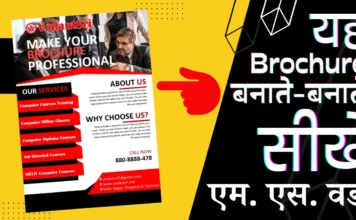
MS Word Brochure Design Project by VedantSri Varanasi
MS Word Brochure Design Project by VedantSri Varanasi In This Post, we are going to learn MS Word Class which is most…